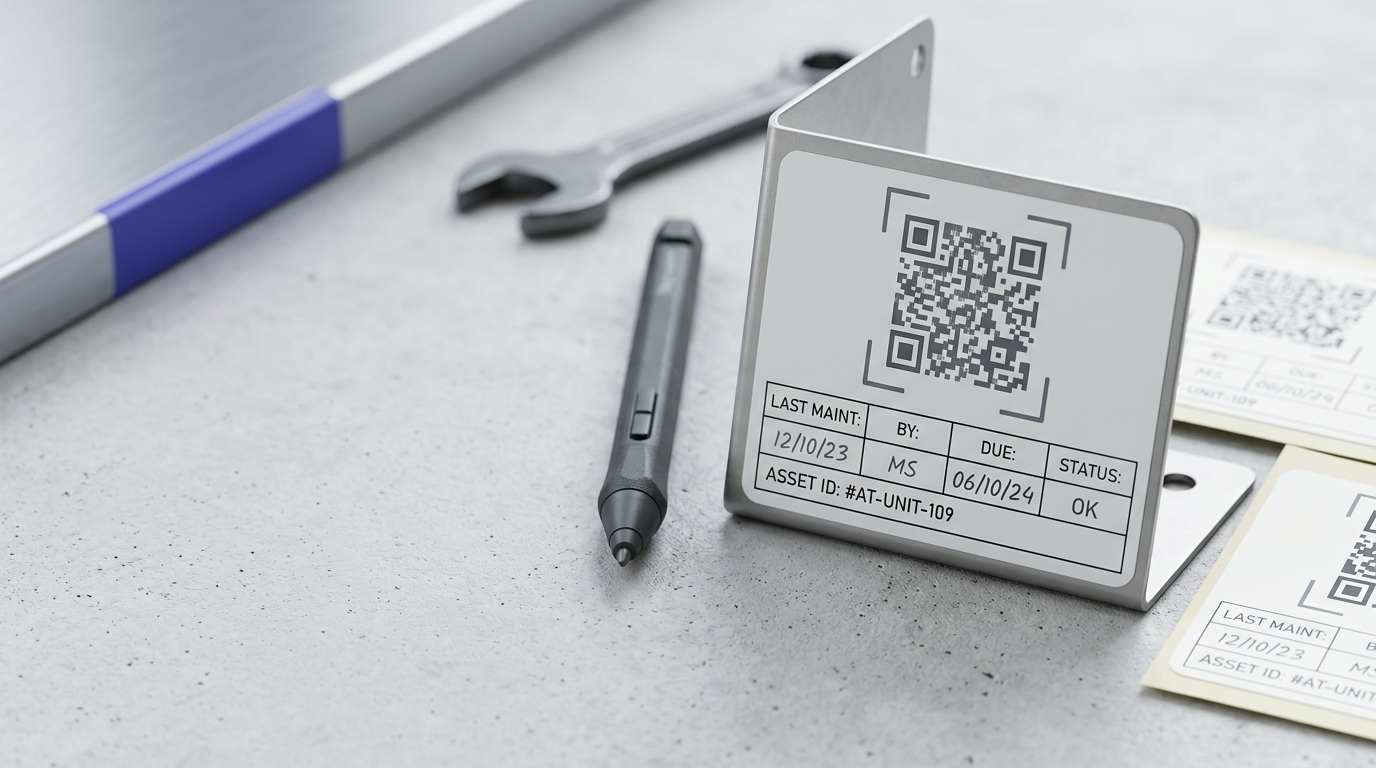
QR Codes on Stickers & Labels
QR code stickers let any physical surface become a digital touchpoint — from a laptop sticker that links to your portfolio to an asset tag that links to maintenance records. Small format, big functionality.
Create your free QR code →Free trial · No credit card · Codes never expire
Ways to use QR codes on Stickers and Labels
The most common uses are:
Every QRecode code is dynamic — you can change where it points at any time without reprinting, and every scan is tracked.
Sticker sizing, and the smallest a code can usefully be
Stickers are read in the hand or at close range, typically 20–30cm, which under the 10:1 rule means 2–3cm. The complication is that the sticker itself is often smaller than the surface the buyer imagined.
The practical floor is 2cm square for the code alone, before any border, logo or text on the sticker. That means a sticker carrying a code plus a short label needs to be at least 4 × 3cm. Below that, either the code drops under 2cm or the quiet zone gets eaten — and both fail.
| Sticker size | Usable code area | Verdict |
|---|---|---|
| 25 × 25mm | ~1.5cm code | Too small — unreliable |
| 40 × 30mm | 2cm code + label | Workable minimum |
| 50 × 50mm | 3cm code + label | Comfortable |
| 76 × 51mm (3" × 2") | 3.5cm + text | Best for retail use |
| 100 × 100mm | 5cm+ | Shelf or window use |
Vinyl, laminate and the curve problem
Sticker material behaves differently from paper in two ways that matter.
Most durable stickers are gloss vinyl, which reflects badly. Ask for matte vinyl instead — it costs the same, survives outdoors just as well, and does not throw light back at the camera. Where gloss is unavoidable, oversize the code by around 25% to give the scanner more pattern to work with.
The other issue is that stickers get applied to curved things. A code applied around a bottle, a tube, a pipe or a laptop edge distorts exactly where the finder patterns sit. Keep a sticker code within the flattest available span, and if the surface curves tightly, use a smaller sticker on a flatter part rather than a larger one that wraps.
- Choose matte vinyl over gloss for anything scanned.
- On curved surfaces, keep the code within the flat span — do not let it wrap.
- For outdoor stickers, specify UV-stable ink; faded contrast is a slow scanning failure.
- Rounded-corner stickers eat into the quiet zone at the corners — inset the code accordingly.
- Clear stickers need a white panel behind the code; the surface colour beneath will otherwise destroy contrast.
Where sticker codes actually earn their place
Stickers are the cheapest way to add a code to something that was never designed to carry one, which makes them the natural fix for existing stock and existing premises.
Because a dynamic code can be repointed, a batch of identical stickers can serve different purposes over time — and can be applied to products already printed, packaging already ordered, or equipment already installed, without changing any of it.
- Retrofitting a code onto packaging that has already been printed.
- Equipment and appliance labels linking to manuals, servicing records or reorder pages.
- Window and door stickers for opening hours, ordering or WiFi.
- Product authenticity and warranty registration.
- Event and promotional giveaways, where the sticker itself is the marketing.
Ordering stickers that actually survive
Sticker specification is where most of the scanning failures are decided, and it happens before anything is printed.
The three variables that matter are material, finish and adhesive. Matte vinyl handles outdoor use and does not flare. Paper stickers are cheaper and fine indoors on a shelf, but bleed the moment they meet moisture. Adhesive matters more than people expect: a general-purpose adhesive on a cold, damp or textured surface lifts at the corners within weeks, and a lifted corner distorts the code and collects dirt.
Order a small sample run before committing to volume, apply it to the actual surface, and leave it a fortnight in the real conditions. That fortnight tells you more than any spec sheet, and it costs a fraction of reprinting ten thousand labels that curled.
- Matte vinyl outdoors; paper only for dry indoor use.
- Match the adhesive to the surface — cold, damp and textured all need a specific one.
- Order a sample run and leave it in situ for two weeks before committing.
- Specify UV-stable ink for anything in daylight; faded contrast fails gradually.
- Round corners lift less than square ones, but inset the code to protect the quiet zone.
A real, working QR code
This code was generated on this page, in your browser. Point your phone camera at it and it opens this guide — every code the generator makes works the same way.
Create yours freeHow to create a QR code
From idea to scannable code in three simple steps.
Create your code
Choose what your code links to — a website, menu, booking page, contact card or more. Customise the colours to match your brand.
Place it on your stickers & labels
Download a print-ready PNG or SVG and add it wherever your customers will see it. SVG stays sharp at any size.
Track and update
Watch scans roll in through real-time analytics, and change where your code points any time — no reprinting needed.
Why use dynamic QR codes?
Unlike static QR codes, dynamic codes let you change where they point any time — without reprinting. Track every scan with real-time analytics, customise the design to match your brand, and download in print-ready SVG or PNG.
- Apply to any surface — no need to redesign the underlying asset
- Track scan activity per sticker location
- Replace the link without replacing the sticker (dynamic codes)
Change where your code points without reprinting.
See every scan, device, and location instantly.
Match your brand colours and add a logo overlay.
Print-ready quality at any size.
UK-hosted, privacy-first scan tracking.
Your printed materials work forever.
Dynamic vs static QR codes
Not sure which to use? Here's how they compare.
Practical tips
Same price, same outdoor durability, and it does not throw light back at the camera.
Whatever is underneath will otherwise destroy the contrast the scanner needs.
Keep it within the flattest span. A smaller sticker on a flat area beats a larger one that bends.